Overview
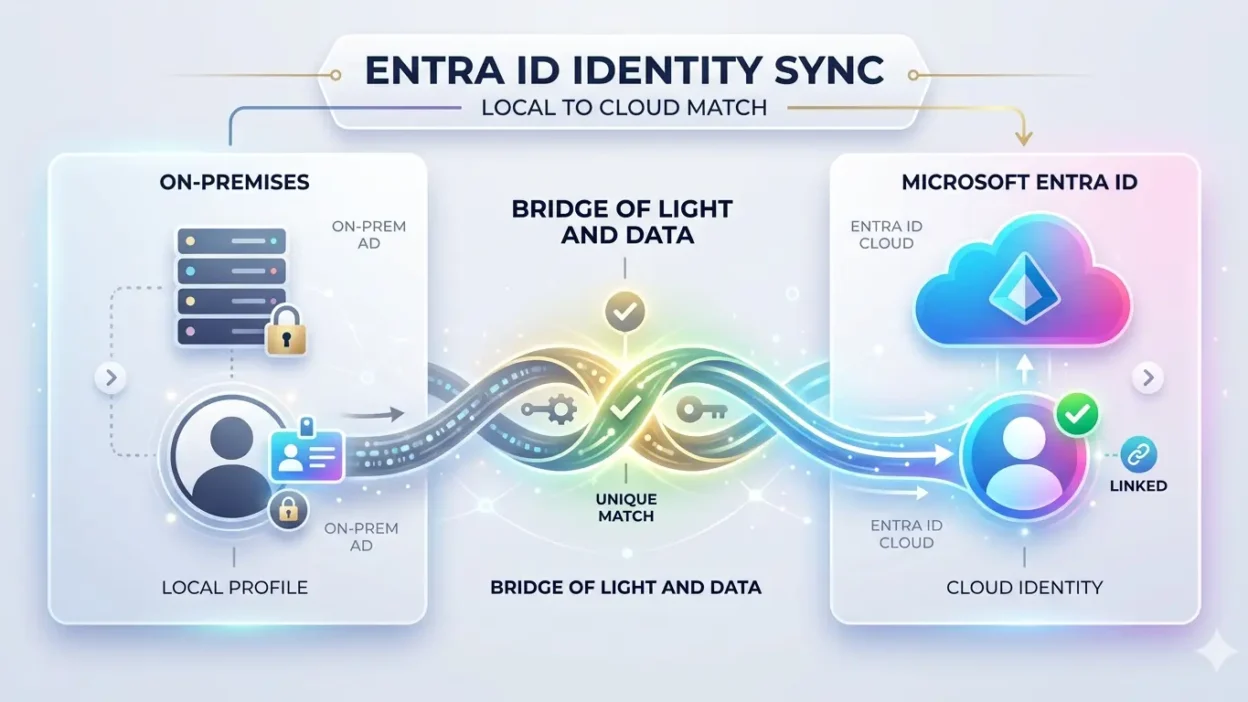
In hybrid identity environments where on-premises Active Directory is synchronized with Microsoft Entra ID (Azure AD), administrators may encounter synchronization failures related to identity matching.
One of the most common synchronization issues is:
Duplicate Attribute or Attribute Value Must Be Unique
This error typically occurs when a user account exists both on-premises and in Microsoft Entra ID, but Azure AD Connect cannot correctly associate the two objects during synchronization.
Fortunately, the required identity reference value—OnPremisesImmutableId—can often be obtained directly from the synchronization error details, eliminating the need for manual GUID conversions or additional Active Directory lookups.
Understanding OnPremisesImmutableId
Azure AD Connect uses a unique identifier known as the Source Anchor to maintain a consistent relationship between an on-premises Active Directory object and its corresponding cloud object.
The Source Anchor:
- Uniquely identifies a user across environments
- Is derived from the Active Directory ObjectGUID
- Is stored and transmitted in Base64 format
- Is represented in Microsoft Entra ID as the OnPremisesImmutableId
Important Note
In many synchronization conflict scenarios, Azure AD Connect already displays the required Source Anchor value within the synchronization error details.
This value is:
- Already encoded
- Already validated by Azure AD Connect
- Ready for use without any conversion
Retrieving the Source Anchor Value
There are two primary locations where administrators can obtain the required Source Anchor value.
Method 1 – Azure AD Connect Synchronization Service Manager (Recommended)
Step 1
Log in to the Azure AD Connect server.
Step 2
Open the Synchronization Service Manager:
miisclient.exeStep 3
Navigate to:
OperationsStep 4
Locate synchronization entries with:
- Status: Error
- Error Type: Duplicate Attribute
Step 5
Open the error details.
Example Error Details
Within the synchronization error, you may find entries similar to:
Source Anchor:
QSkKsh117EeUTnRe8UqhSA==
or
Anchor:
ADmkrHUA90ezILakenr8jw==
Key Observation
The value displayed is already:
- Correct
- Base64 encoded
- Ready to use
No additional conversion is required.
No Active Directory query is required.
No ObjectGUID manipulation is required.
Method 2 – Microsoft Entra Connect Health
Step 1
Sign in to the Microsoft Entra Admin Center.
Step 2
Navigate to:
Identity
→ Hybrid Management
→ Microsoft Entra Connect
→ Connect Health
→ Sync Errors
Step 3
Filter synchronization errors for:
Duplicate AttributeStep 4
Select the affected user.
Example Output
The synchronization error details commonly display information similar to:
Source Anchor:
kgC4YTrY6UunBFtSs1Td+w==
This value can be used directly when updating the cloud object.
Why This Approach Is Beneficial
Using the Source Anchor directly from synchronization errors offers several advantages:
Reduced Complexity
No manual GUID-to-Base64 conversion is required.
Improved Accuracy
The value originates directly from Azure AD Connect processing and therefore minimizes human error.
Faster Resolution
Administrators can immediately proceed with remediation without additional investigation steps.
Consistent Identity Matching
Ensures alignment with the identifier expected by Azure AD Connect.
Applying the OnPremisesImmutableId Value
Once the Source Anchor value has been identified, it can be assigned to the corresponding cloud user.
Connect to Microsoft Graph
Connect-MgGraph -Scopes "User.ReadWrite.All"Update the User
Update-MgUser `
 -UserId "[email protected]" `
 -OnPremisesImmutableId "QSkKsh117EeUTnRe8UqhSA=="
Generic Example
Update-MgUser `
 -UserId "[email protected]" `
 -OnPremisesImmutableId "<Source Anchor Value>"
Trigger a Synchronization Cycle
After updating the attribute, initiate a synchronization cycle:
Start-ADSyncSyncCycle -PolicyType DeltaThis forces Azure AD Connect to re-evaluate the object relationship.
Validation
Verify that the attribute has been applied successfully.
Get-MgUser -UserId "[email protected]" |
Select-Object UserPrincipalName, OnPremisesImmutableId
Expected Output
UserPrincipalName         : [email protected]
OnPremisesImmutableId     : QSkKsh117EeUTnRe8UqhSA==
Common Scenarios Where This Method Helps
Administrators frequently encounter the following situations:
Existing Cloud Account
A user account was created directly in Microsoft 365 before directory synchronization was enabled.
Identity Mismatch
The synchronized Active Directory account and cloud account cannot be automatically associated.
Duplicate User Attributes
Multiple objects share:
- User Principal Name (UPN)
- SMTP Address
- ProxyAddresses
Synchronization Loops
Azure AD Connect repeatedly reports duplicate attribute errors for the same user.
In these cases, the Source Anchor shown within the synchronization error often provides the exact value needed for remediation.
Best Practices
To minimize identity synchronization issues:
- Review Azure AD Connect synchronization errors before making changes.
- Use the Source Anchor value provided by the synchronization engine whenever available.
- Maintain consistent UPN values between Active Directory and Microsoft Entra ID.
- Ensure proxyAddresses remain unique across all synchronized objects.
- Regularly review synchronization health through Microsoft Entra Connect Health.
- Document any manual identity corrections performed within the tenant.
Summary
| Item | Description |
|---|---|
| Issue | Duplicate Attribute Synchronization Error |
| Root Cause | Identity mismatch between on-premises and cloud objects |
| Source of Value | Azure AD Connect Sync Engine or Connect Health |
| Required Attribute | Source Anchor / OnPremisesImmutableId |
| Format | Base64 |
| Action | Assign value to the cloud user |
| Result | Successful object association and synchronization |
Conclusion
When Azure AD Connect reports a Duplicate Attribute synchronization error, the required OnPremisesImmutableId can often be obtained directly from the synchronization error details.
Because Azure AD Connect already presents the Source Anchor in the correct Base64 format, administrators can use the value immediately without performing any additional conversion or Active Directory lookups.
By leveraging the Source Anchor provided in the synchronization error, organizations can resolve identity matching issues more quickly, reduce troubleshooting effort, and restore successful synchronization between Active Directory and Microsoft Entra ID.