Overview
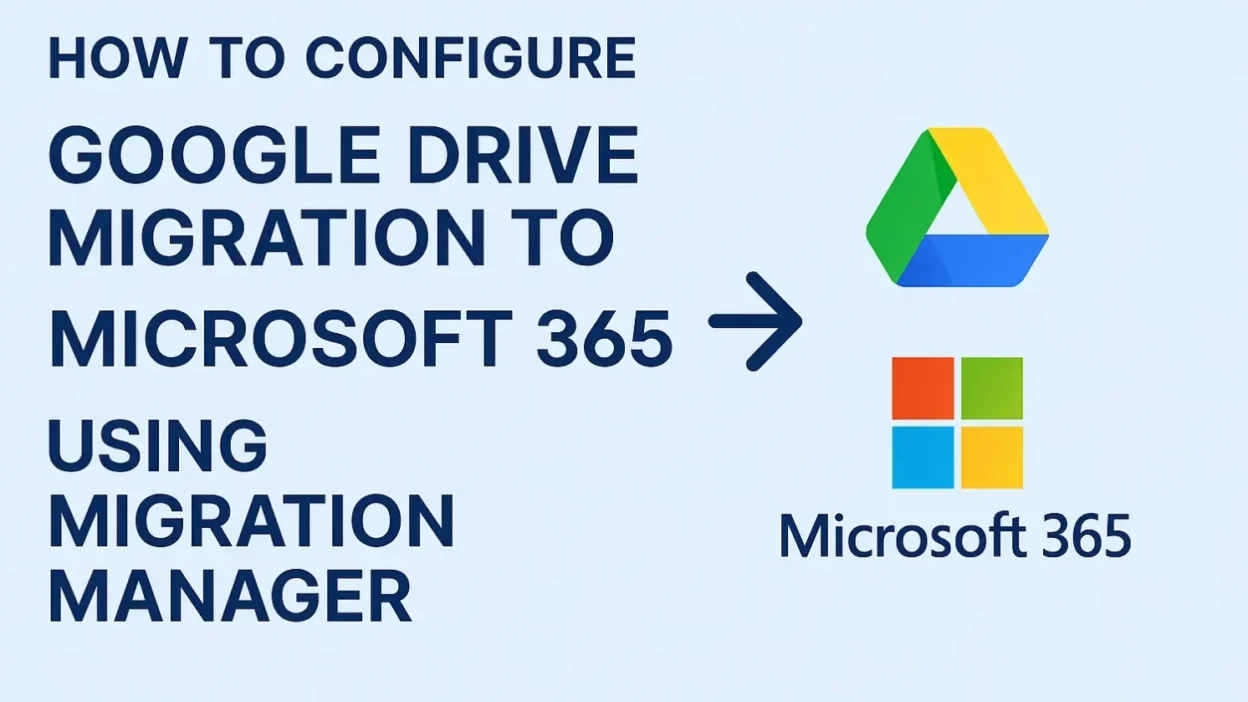
Microsoft Migration Manager allows organizations to migrate Google Drive workloads directly into Microsoft 365 services such as OneDrive for Business and SharePoint Online.
The migration solution supports:
- Google My Drive to OneDrive migration
- Shared Drives to SharePoint Online migration
- Incremental synchronization
- User and permission mapping
- Migration reporting and monitoring
Migration Manager provides a centralized migration experience without relying on third-party migration utilities.
Supported Migration Scenarios
Supported Workloads
- Google My Drive
- Shared Drives
- Folder structures
- Microsoft Office files
- PDFs and images
- Shared permissions
- Incremental synchronization
Unsupported or Limited Items
The following items may not migrate fully or may require manual validation:
- Google Forms
- Google Sites
- Third-party application metadata
- Unsupported file names
- Google shortcuts
- Files exceeding Microsoft 365 limitations
- Certain external sharing permissions
Prerequisites
Before starting the migration, ensure all prerequisites are completed.
Microsoft 365 Requirements
- Global Administrator account
- SharePoint Administrator role
- OneDrive enabled for users
- SharePoint Online configured
- Microsoft 365 licenses assigned
- Migration Manager enabled
Google Workspace Requirements
- Google Workspace Super Administrator access
- Google Cloud Console access
- Google Drive enabled
- API access enabled
Required Permissions
| Platform | Required Role |
|---|---|
| Microsoft 365 | Global Administrator |
| Microsoft 365 | SharePoint Administrator |
| Google Workspace | Super Administrator |
| Google Cloud | Project Owner |
Pre-Migration Assessment
Before starting migration, perform a detailed assessment.
Recommended Tasks
- Identify inactive users
- Review storage consumption
- Analyze sharing permissions
- Validate OneDrive provisioning
- Review unsupported file types
- Check path and file naming limitations
- Perform pilot migration testing
A proper assessment reduces migration failures and minimizes business disruption.
OneDrive Provisioning Validation
Ensure OneDrive is provisioned for all users.
Users can provision by signing in, or admins can use PowerShell:
Request-SPOPersonalSite -UserEmails [email protected]
Create Google Cloud Project
A Google Cloud Project is required to enable APIs, authentication, and service account integration.
Why This Is Required
- Enable Google Drive APIs
- Configure OAuth authentication
- Create service account
- Configure domain-wide delegation
- Allow Microsoft Migration Manager access
Prerequisites
- Google Admin Center access
- Super Admin account
- Google Cloud Console access
- API access enabled
Steps to Create Google Cloud Project
Step 1 – Open Console
https://console.cloud.google.com
Step 2 – Create Project
- Click project dropdown
- Select New Project
Step 3 – Configure
| Field | Value |
|---|---|
| Project Name | Custom name |
| Organization | Select org |
| Location | Select location |
Step 4 – Create
- Click Create
- Wait for provisioning
Common Errors
Permission Denied
Cause: Insufficient permissions
Fix: Assign:
- Project Creator
- Organization Admin
Organization Policy Restriction
Cause: Security policy block
Fix: Allow:
- API creation
- Service account creation
- Project creation
APIs Disabled
Enable via:
Admin Center → Security → API Controls
Enable Google APIs
Required APIs:
- Google Drive API
- Admin SDK API
Steps:
- APIs & Services → Library
- Enable both APIs
Configure OAuth Consent Screen
- APIs & Services → OAuth Consent Screen
- Select Internal
- Provide:
- App Name
- Support Email
Create Service Account
- APIs & Services → Credentials
- Create → Service Account
- Enter name → Create
Enable Domain-Wide Delegation
- Open service account
- Enable Domain-Wide Delegation
- Save
Copy:
- Client ID
- Service Account Email
Create Service Account Key
- Open service account
- Keys → Add Key → JSON
- Download securely
Configure API Access (Google Admin)
- Admin Console → Security → API Controls
- Domain-Wide Delegation → Add New
Enter:
- Client ID
- OAuth Scopes:
https://www.googleapis.com/auth/admin.directory.user.readonly
https://www.googleapis.com/auth/drive
https://www.googleapis.com/auth/drive.readonly
Configure Migration in Microsoft 365
- Microsoft 365 Admin Center → Setup → Migration
- Select Google Workspace
- Upload JSON key
Start Drive Scan
- Click Scan
- Review:
- Users
- Shared Drives
- Storage
- Permissions
Configure Destinations
| Source | Destination |
|---|---|
| My Drive | OneDrive |
| Shared Drives | SharePoint |
Start Migration
- Select users/drives
- Click Migrate
Features:
- Incremental sync
- Retry
- Reporting
- Error logs
Monitor Migration
| Status | Description |
|---|---|
| Queued | Waiting |
| In Progress | Running |
| Completed | Success |
| Failed | Needs fix |
Migration Limitations
- API throttling
- Invalid characters
- File size limits
- Path limitations
- Permission mismatches
- External sharing differences
Shared Drive Permission Considerations
- Links may need recreation
- External sharing differs
- Inherited permissions may change
- Manual validation required
Post-Migration Validation
- Files migrated
- Folder structure intact
- Permissions correct
- OneDrive accessible
- SharePoint working
Troubleshooting
Authentication Failure
Verify:
- Delegation enabled
- OAuth scopes correct
- JSON uploaded
API Denied
Enable required APIs.
User Mapping Errors
Ensure users:
- Exist
- Are licensed
Final Cutover
- Stop changes in Google
- Run final sync
- Validate reports
- Inform users
- Redirect to M365
- Disable legacy access
Best Practices
- Run pilot migration
- Use incremental sync
- Validate permissions
- Skip inactive users
- Communicate timelines
- Monitor reports
Conclusion
Microsoft 365 Migration Manager provides a scalable and native solution for migrating Google Drive workloads into OneDrive and SharePoint Online.
Proper configuration of APIs, authentication, permissions, and mappings ensures a secure and efficient migration.
Careful planning, pilot testing, and validation are critical for success.

As a seasoned Engineer – Systems, I bring over 4 years of hands-on expertise in IT system administration, support, and management. Armed with a solid foundation from London Metropolitan University, where I earned my Bachelor of Engineering degree in Network and System, and further fortified by certifications from multiple venders, I am well-equipped to navigate the dynamic landscape of technology.